• e-Bricks
  • Hibricks
  • Super Buddies
  • English Starship
  • Quest
  • MP3 Center

ENGLISH BUS

play
Student Go
Teacher Go

COPYRIGHTⓒ2025 BRICKS EDUCATION. ALL RIGHTS RESERVED

bricks
닫기

Level Test

A
Period of Study
~2 years
Go
B
Period of Study
3~4 years
Go
닫기 Help

Help

The level tests will help teachers place students into the accurate level or class by measuring their existing knowledge of English.

Level Test A is for students expected to place in Starter Levels, Level 1, or 2. Testing time for Test A is 15~20 minutes. If students receive a perfect score on this test, they should take Level Test B.

Level Test B is for students expected to place in Level 3, 4, 5, or 6. Testing time for Test B is 25~30 minutes.

닫기

Log in

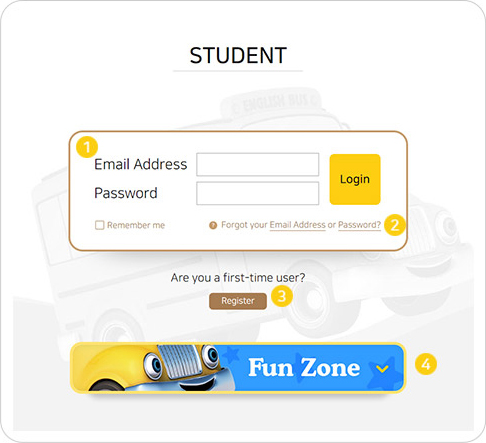
  1. 1Type in your username (email address) and password to log in.
  2. 2If you have forgotten your email address or password, click ‘Forgot your Email Address or Password?’
  3. Find your Email You will be asked to provide your access code. You will then be given your registered email address, which you can change after logging in again.
  4. Reset your Password You will be asked to provide your access code. You will then be given a temporary password, which you can change after logging in again.
  5. After logging in, you can edit your email address or password in the “Edit profile” menu.
  6. 3If you are a first-time user click ‘Register’.
  7. 4Fun zone: You can play word games without having to log in.
help
close

Register

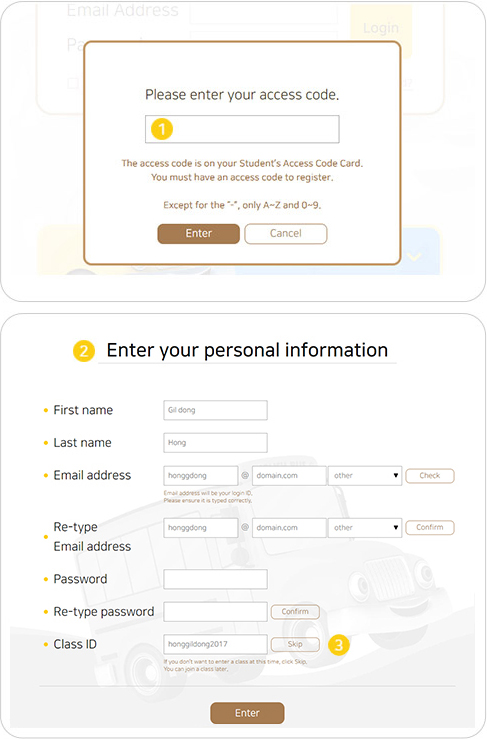
  1. 1Enter your access code here. The access code is on your Student's Access Code Card. You must have an access code to register.
  2. 2To register you will need to provide your first name and family name, a valid email address, a password. The password must contain 6 to 15 characters, including at least one letter, number, and special character.
Note: your email address will be your username.
Once you have registered and logged in, you can change any of profile details except for your name. Click 'Edit Profile', change the details in any of the fields, and click ‘Save'.
  3. 3If you have a class ID code from your teacher, enter it here. If you don't want to enter a class at this time, click "Skip". You can join a class later.
help
close

Warning: include(../modal/help_s_selectlevel.php): failed to open stream: No such file or directory in /home/english/public_html/tail.php on line 34

Warning: include(): Failed opening '../modal/help_s_selectlevel.php' for inclusion (include_path='.:') in /home/english/public_html/tail.php on line 34
close

Online Learning center

  1. 1Click here to enter the online practice activity area.
  2. 2Click here to see your Report. These show your achievements and progress for all of the activities in this level.
  3. 3Click here to access the Resources area where you can find extra resources that will support you with your online practice.
  4. 4Click here to join a class of change class. You will need a class code from your teacher to do this.
  5. 5Click here to use the Q&A board. You can read and write on the bulletin board. The Q&A icon appears here when you have joined a class.
help
close

Activities Home

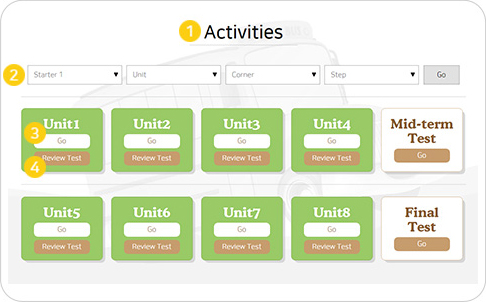
  1. 1Each level of English Bus is divided into eight units and each unit has five Learn Sections within it.
  2. 2Use this menu to choose a unit, lesson, and step.
  3. 3Use this button to enter an activity within the unit.
  4. 4Use this button to take the review test, mid-term test, and final test.
help
close

Activities

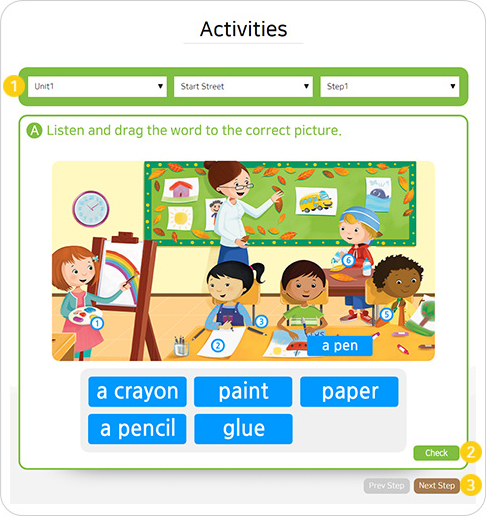
  1. 1Each unit has five Learn sections within it. There is a Start street, Learn street 1, Learn street 2, Story street, Fun street, and Practice activity for each Learn section.
  2. 2You can check your answers when you have answered all questions in an activity. You can do the activity again by clicking ‘Yes’ in the popup window ‘Do you want to try again?’ Each time you do the activity your result will overwrite that of any previous attempt.
  3. 3Use the ‘Prev Step’ and ‘Nest Step’ buttons to navigate through the activities in sequence.
help
close

Reports

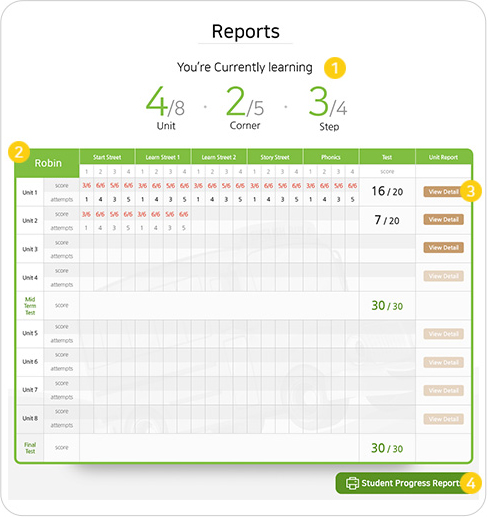
  1. 1This shows the student's current learning progress.
  2. 2The table shows your activity scores for all units in your level.
This shows the score of all activities attempted in each lesson of a unit. The score is shown out of the total number of possible points in the attempted activities. And the each number of activity attempts in a unit is shown.
  3. 3Unit Report
  4. 4Student Progress Report:
    Each time vou complete an activity in the Online Practice vour result will be recorded. You can view all results by clicking on the "Student Progress Reports" button at the bottom of the page.
help
close

Resources

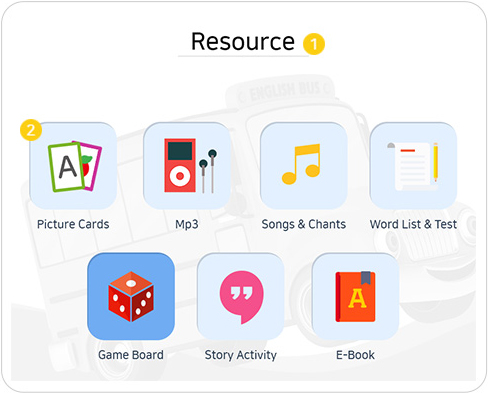
  1. 1Resources area will provide supporting material for you when using online practice.
  2. 2Click on an icon to open a Resource. PDF files and documents will open in a new tab or download to vour computer
help
close

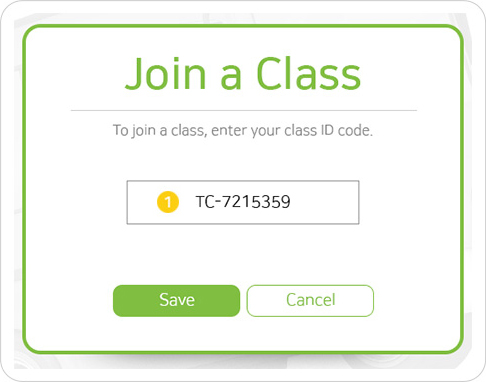
Join a Class

  1. 1Enter your class ID code here and click “Save.” A class ID code is a code that your teacher can give you. It links your work so your teacher can see it.
help
close

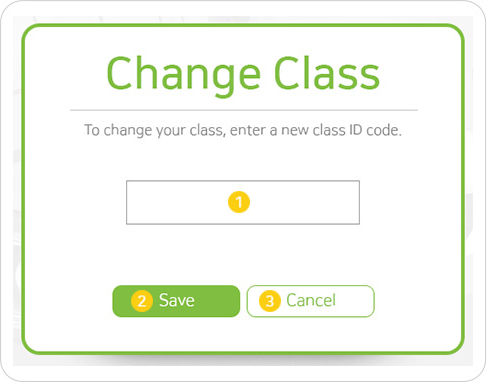
Change Class

  1. 1Enter your new class ID code here and click “Save.”
  2. 2Click here to submit your new class ID code and return to your Home page.
  3. 3Click here to back to the previous page without changing your class.
help
close

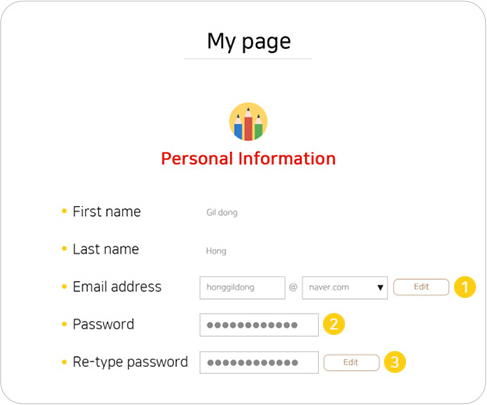
Edit Profile

  1. 1Click here to change your email address.
  2. 2Click here to change your password.
  3. 3Click here to confirm your new password.
help
close

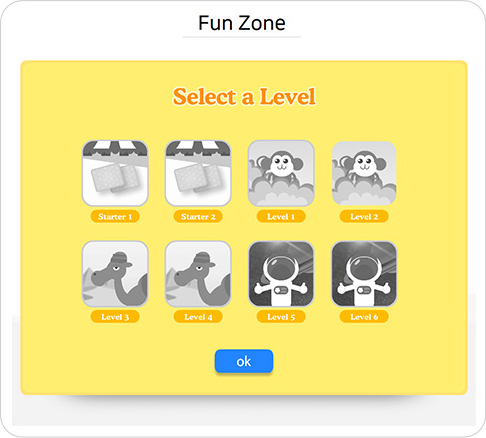
Fun Zone

  1. 1Click on an icon to play a game. The Game is based on the words in the English Bus.
help
close

Warning: include(./modal/help_teacher.php): failed to open stream: No such file or directory in /home/english/public_html/tail.php on line 183

Warning: include(): Failed opening './modal/help_teacher.php' for inclusion (include_path='.:') in /home/english/public_html/tail.php on line 183
close

Log in

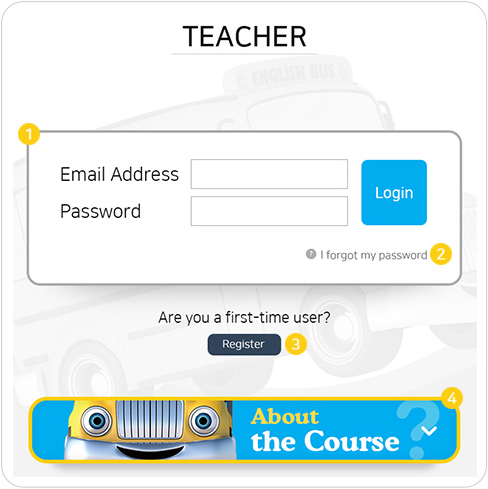
  1. 1Type in your username (email address) and password to log in.
  2. 2If you have forgotten your password, click I forgot my pass-word. You will be asked to provide your first name, last name, and email address. You will then be given a temporary pass-word, which you can change after logging in again.
  3. 3If vou are a first-time user click ‘Register'.
  4. 4About the Course:
    • Course Introduction: An overview of the components in the
English Bus series.
    • Unit Walkthrough: A summary of the unit structure in Eng lish Bus Student Books.
    • Syllabus: The syllabus for each English Bus Student Book.
    • Components and Samples: Examples of the various compo nents in the English Bus series, including Student Books, Mp3 files, Workbooks, Teacher's Guide, Home Audio CDs, Posters, Picture Cards, Big-sized Game Boards and Power Point Materials.
help
close

Register

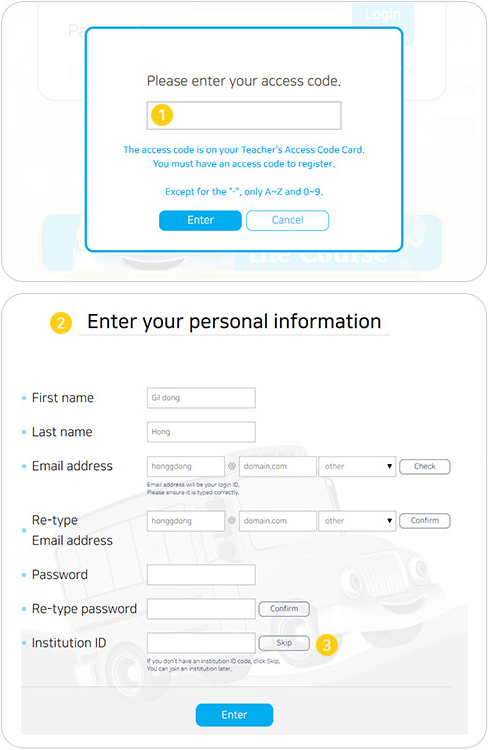
  1. 1Enter your access code here. The access code is on your Teacher's Access Code Card. You must have an access code to
register.
  2. 2To register you will need to provide your first name and family name, a valid email address, a password. The password must contain 6 to 15 characters, including at least one letter, number, and special character.
    Note: your email address will be your username.
    Once you have registered and logged in, you can change any of your profile details. Click 'Edit Profile', change the details in any of the fields, and click 'Save'.
  3. 3If you have an institution ID code, enter it here. This is a code that your administrator can give you. This code links your class records with your school or institution. If you do not have an institution ID code, click "Skip". You can enter an institution by clicking "My institution"
help
close

Manage Classes Create a class

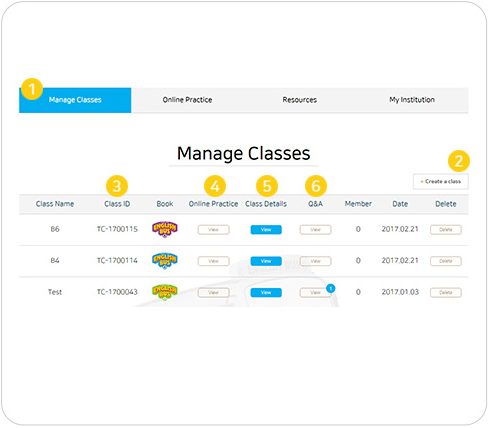
  1. 1This screen shows all of the classes that you have created.
  2. 2To create new class, click "Create a class". You can add more classes. Enter a name for your class and choose a level.
  3. 3This is the class ID code for the class you named in the previous screen. Give this code to your students so they can join your class and vou can see their work.
  4. 4Click here to enter the Online Practice Activity area.
  5. 5Click here to view the details for a class.
  6. 6Click here to use the Q&A board. You can read and write on the bulletin board.
help
close

Manage Teachers

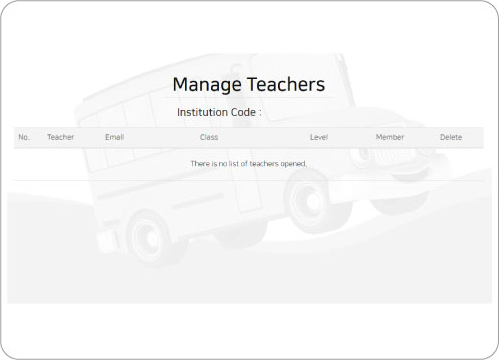
  1. 1This screen indicates that you joined as Institution members.
  2. 2There in no other function but only to check the classes belonging to institution.
  3. 3To use English Bus Online resources, you should sign up as a teacher member.
  4. 4The teachers need to register your Institution code to be added on managing board.
  5. 5On teacher’s account, they should type in Institution Code individually.
  6. 6To create classes, it is only available in teacher’s account.
help
close

Class Detail

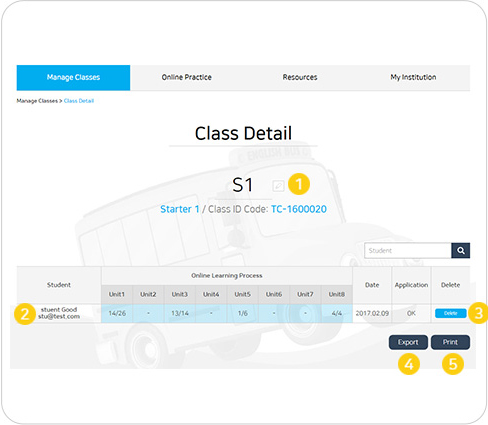
  1. 1Click here to change the name of this class.
  2. 2You can see your students' progress for all of the activities in this level. If you want to view more reports of the student, click the student's name.
  3. 3Click this button to delete this student from this class.
  4. 4Click here to export this list to Microsoft Excel.
  5. 5Click here to print this list.
help
close

My Institution Join an institution

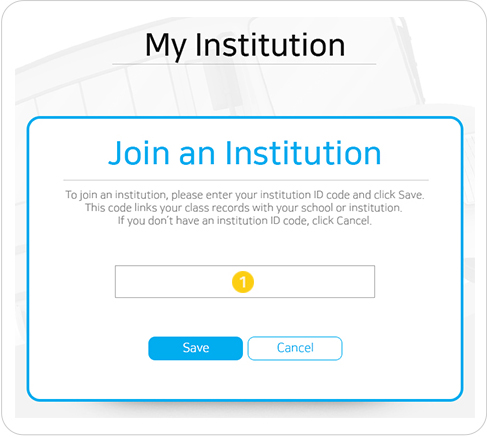
  1. 1To join an institution, enter your institution ID code here and click "Save." An institution ID code is a code that your administrator can give you. It links your class records with your school or institution.
help
close

Log In

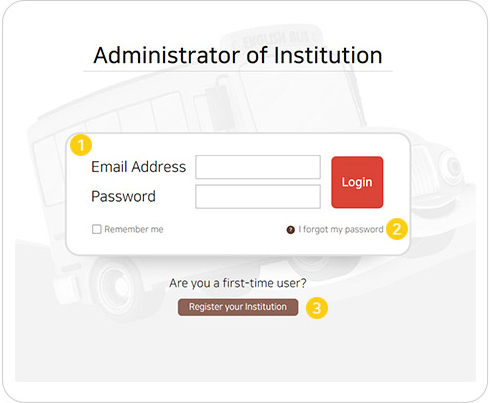
  1. 1Type in your username (email address) and password to log in.
  2. 2If you have forgotten your password, click ‘I Forgot my Password.’ You will be asked to provide your institution name and Email address. You will then be given a temporary password, which you can change after logging in again.
  3. 3If you are a first-time user click 'Register your Institution’.
help
close

Register

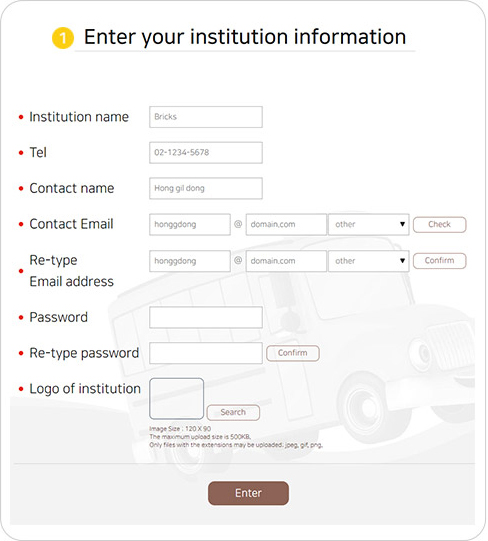
  1. 1 To register you will need to provide your Institution name, a vaild email address, password, logo of Institution. The password must contain 6 to 15 characters, including at least one letter, number, and special character.
    Note: your email address will be your username.
    Once you have registered and logged in, you can change any of profile details except for your name. Click ‘Edit Profile’, change the details in any of the fields, and click ‘Save’.
help
close